



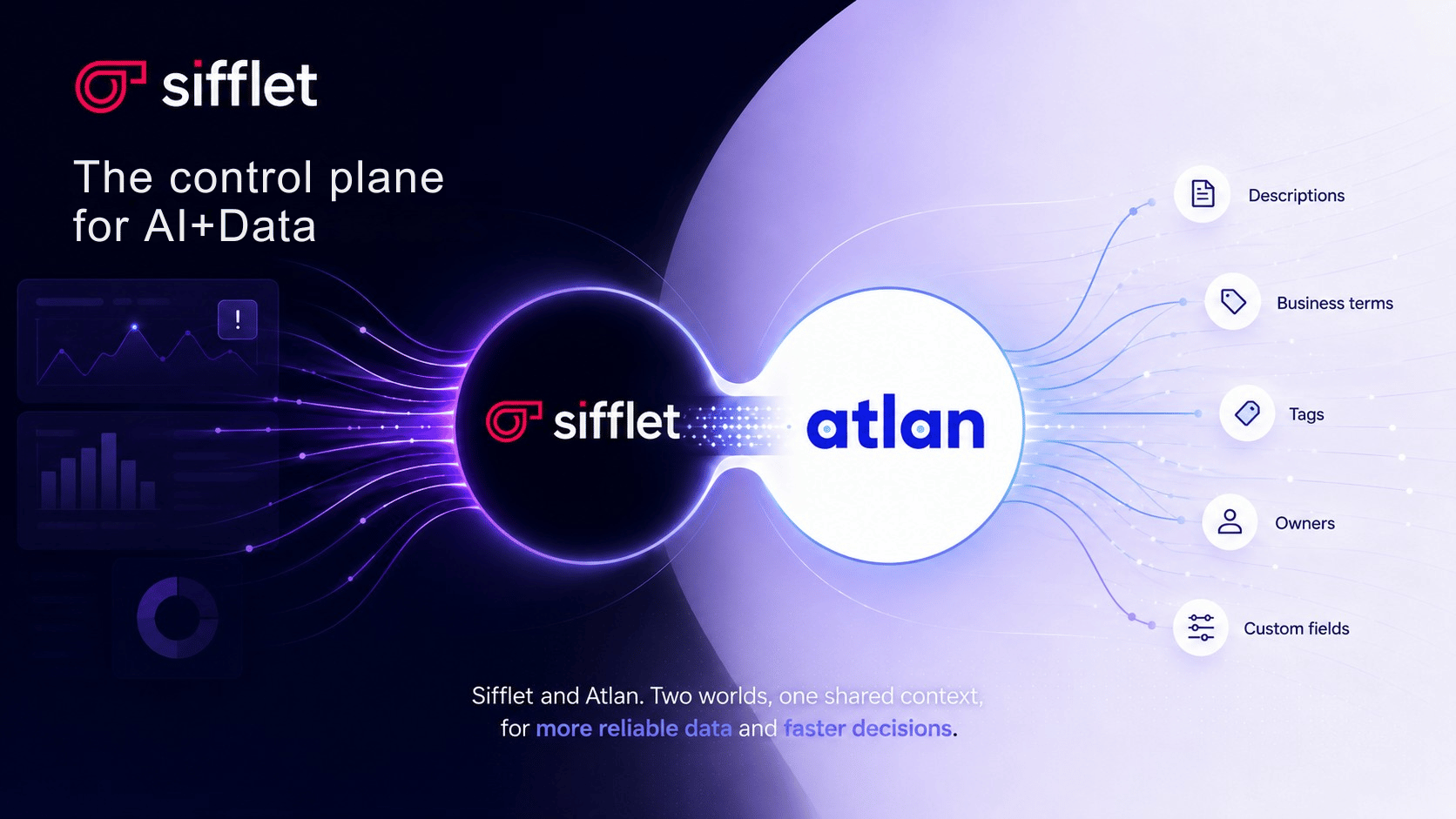
Why context makes observability smarter
Data observability tools detect anomalies. Data catalogs store meaning: who owns a dataset, what business terms it maps to, which tags classify it. These two worlds often stay siloed, forcing engineers to switch contexts every time they investigate an incident or set up a monitor.
The Sifflet + Atlan integration closes that gap. Metadata managed in Atlan is automatically surfaced in Sifflet, so the teams responsible for data quality have the business context they need, exactly where they need it.
What the integration does
📥 Import metadata from Atlan
Sync descriptions, terms, tags, owners, and custom metadata fields on a daily schedule.
🔍 Enrich asset pages
Atlan metadata appears directly on Sifflet asset detail pages alongside lineage and monitor results.
🎛️ Filter the Data Catalog
Selected metadata categories become active filters in the Sifflet Data Catalog.
↗️ Jump to Atlan in one click
An "Open in Atlan" button appears on any asset that's linked to your Atlan instance.
Supported metadata types
Official descriptions · Business terms · Tags · Asset owners · Custom metadata fields defined in Atlan
How to set it up
The integration is configured as a source in Sifflet and uses OAuth to authenticate with your Atlan instance. Here's the flow:
1) Create a new source
In Sifflet, go to Integration Settings, click "Create New Source," and select Atlan.
2) Configure your Atlan credentials
Provide your Atlan tenant URL and create a credential using the Client ID and Client Secret from your Atlan OAuth configuration. The credential format looks like this:
"client_id": "<clientId>","client_secret": "<clientSecret>"
3) Select metadata to import
Click "Load Metadata," choose which categories to sync, and decide which ones should appear as Data Catalog filters. Save and you're done with the metadata configuration.
4) Map assets to your Sifflet sources
Click "Load Assets," select the Atlan integration, match it to the corresponding Sifflet source, set a synchronization frequency, and run a test before saving to confirm the mapping is valid.
Default sync frequency: daily
Sifflet refreshes Atlan metadata once a day by default. You can override this with a custom cron expression in the source configuration if your workflow requires more frequent updates.
A few things worth knowing
Atlan metadata is treated as read-only in Sifflet. Since Atlan remains the single source of truth, any changes need to be made there and will propagate to Sifflet on the next sync.
Two nuances on how metadata is handled in the Catalog:
- Descriptions are displayed on asset pages but are not available as Catalog filters.
- Atlan tags are merged with existing Sifflet tags under a single Tags filter, rather than appearing in a separate section.
If a sync runs into errors, they surface through the same error-reporting flow used by all Sifflet sources. Administrators can inspect logs directly from the source configuration. Note that the sync run name in the logs corresponds to the Atlan integration ID, not the Sifflet source name.
Getting started
The Atlan integration is available now in beta. To configure it, you'll need an active Atlan instance and OAuth credentials created in Atlan. Full setup instructions are in the Sifflet documentation.
If you're already a Sifflet customer, the integration is available from your Integration Settings today. If you'd like to see it in action first, reach out to your account team or request a demo.













-p-500.png)
